Control panel
WebChat Page
When you enter the bot management section and select WebChat, you will see conversations directly in the main interface, without the need for separate tabs. The left panel shows the list of all chat conversations with user names and timestamps, while the right panel displays the full conversation when you select any chat.
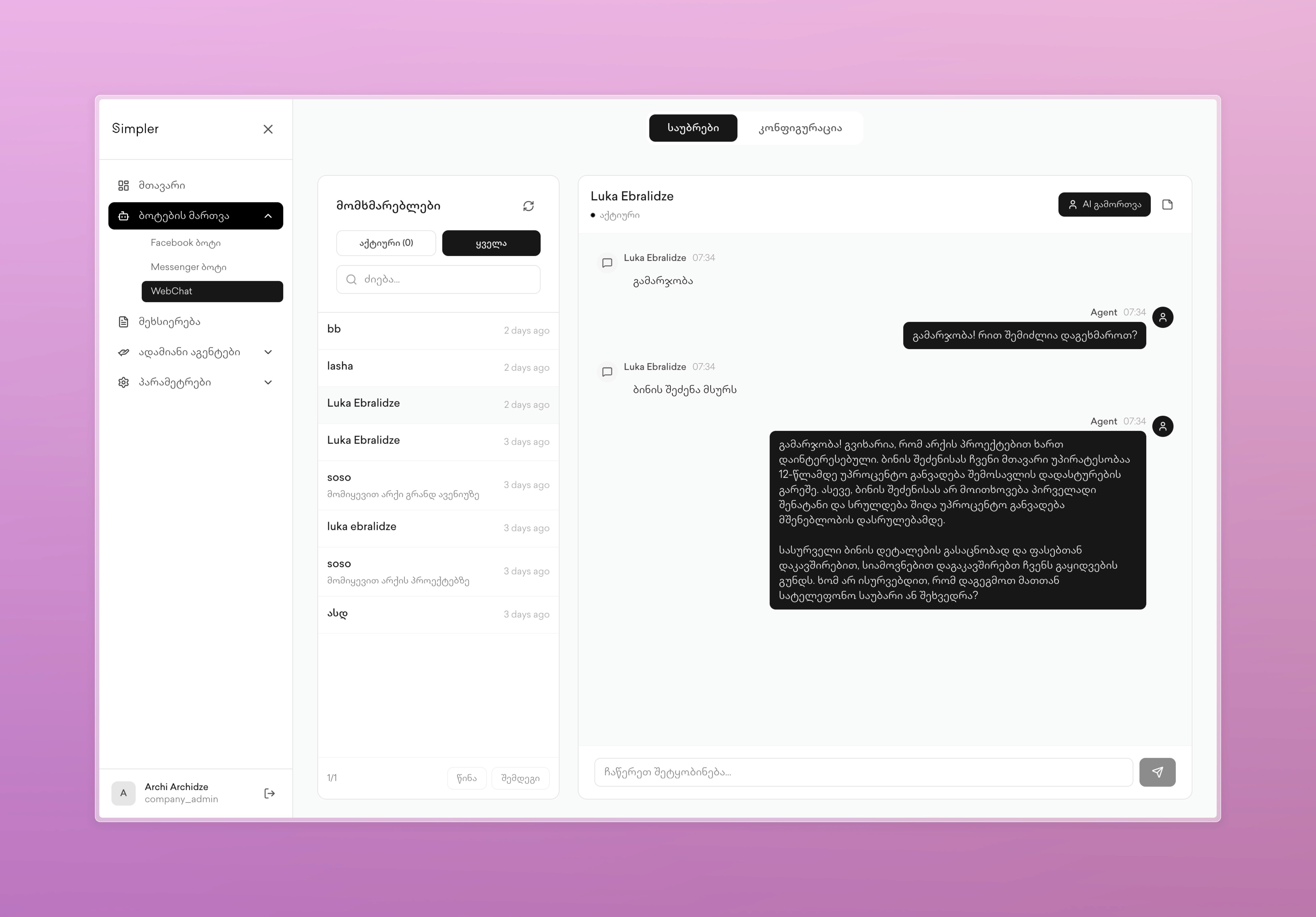
The conversation view shows all exchanged messages between the user and the bot, with clear labels indicating where the response came from – either from the agent or the user. You can send messages to the user directly through the dashboard using the text entry field at the bottom of the conversation panel. In the upper right corner of each conversation, you will find a button that allows you to assign the conversation to a human operator and disable the bot if necessary. There is also a comment button in the upper right corner where you can leave comments about this specific conversation.
Configuration
The configuration tab follows the same structure as Facebook and Messenger. The AI bot toggle activates or deactivates the bot for WebChat. The system prompt determines how the bot behaves in WebChat conversations. RAG documents Memory appear via toggles to enable or disable specific knowledge for WebChat. CRM integrations are shown with individual toggles for access in WebChat. The tools usage section displays all of the bot's available capabilities with activation control specifically for WebChat.
Contact us on Whatsapp at +995 599 100 987
or via email: info@simpler.ge