Control panel
Messenger's page
When you enter the bot management section and select Messenger, you will see two tabs: Active (Active), which shows ongoing conversations, and History, which displays the history of inactive chats. Each conversation record shows user details, along with time stamps for the first and last messages.
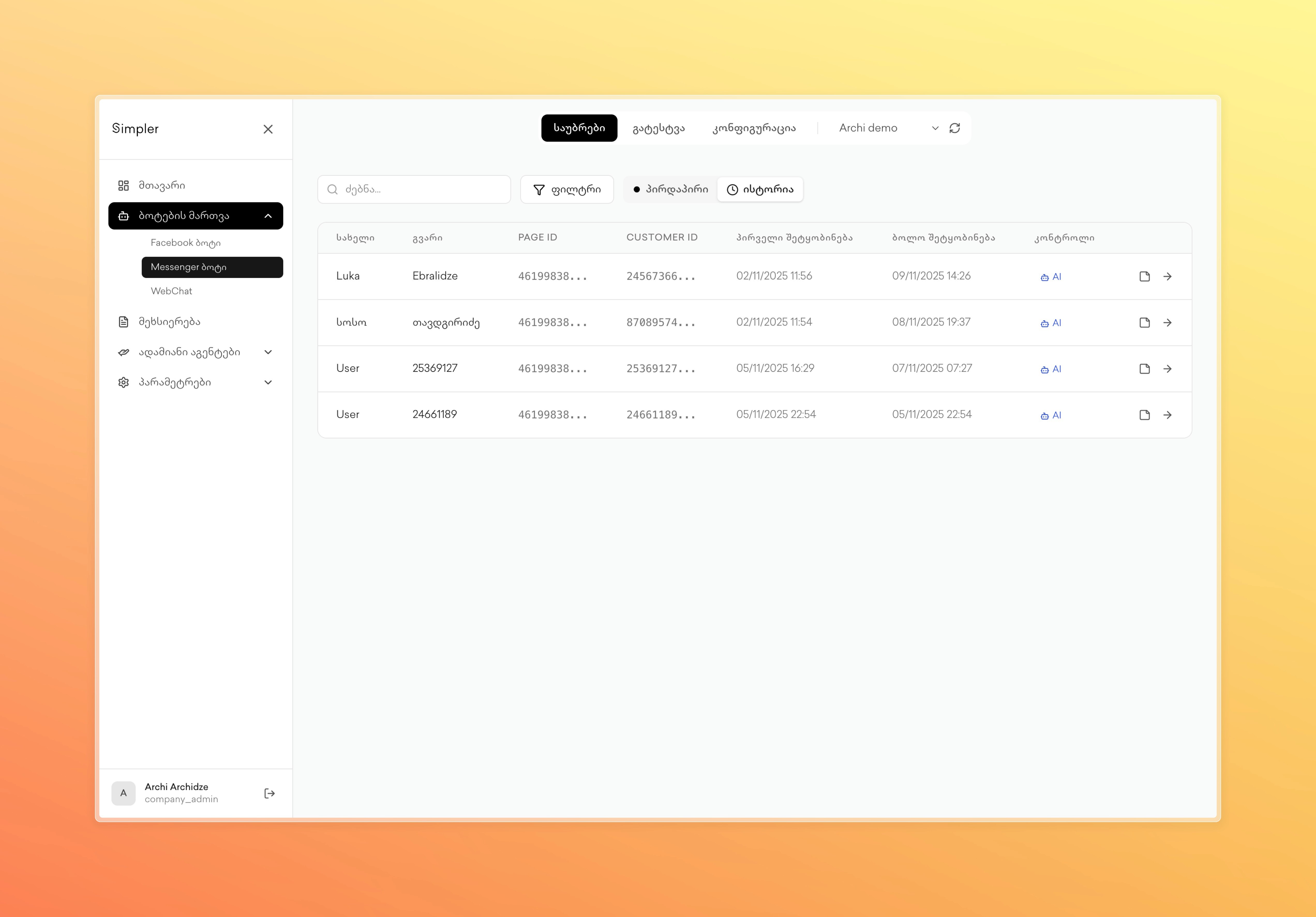
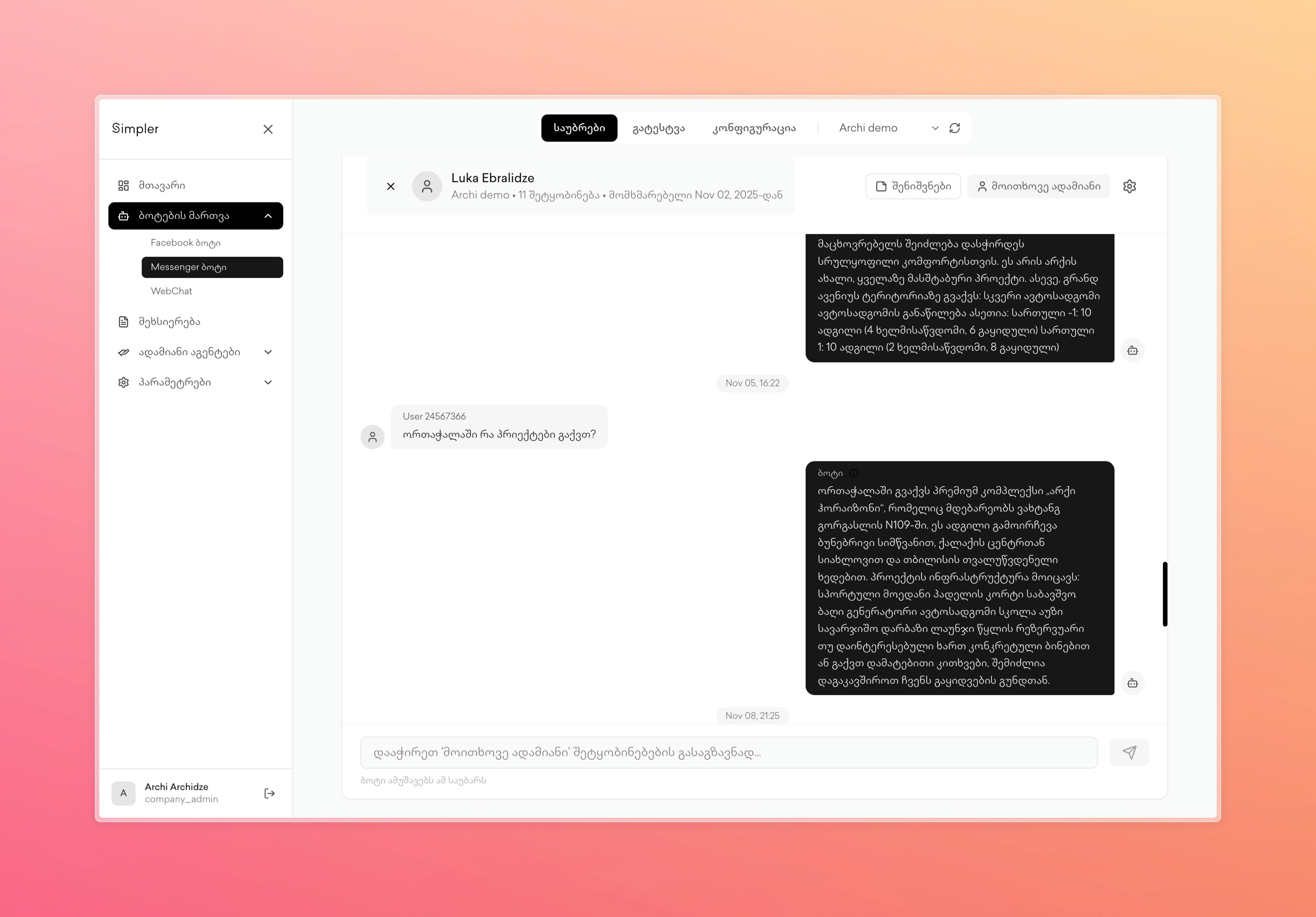
By clicking on any conversation (->), the full chat page opens. At the top, you will see a switch that lets you enable or disable the bot for this specific conversation, as well as a section for Notes, where you can add internal notes about the user or conversation. You can send messages directly from the dashboard interface, and your replies will appear in the conversation thread.
Configuration
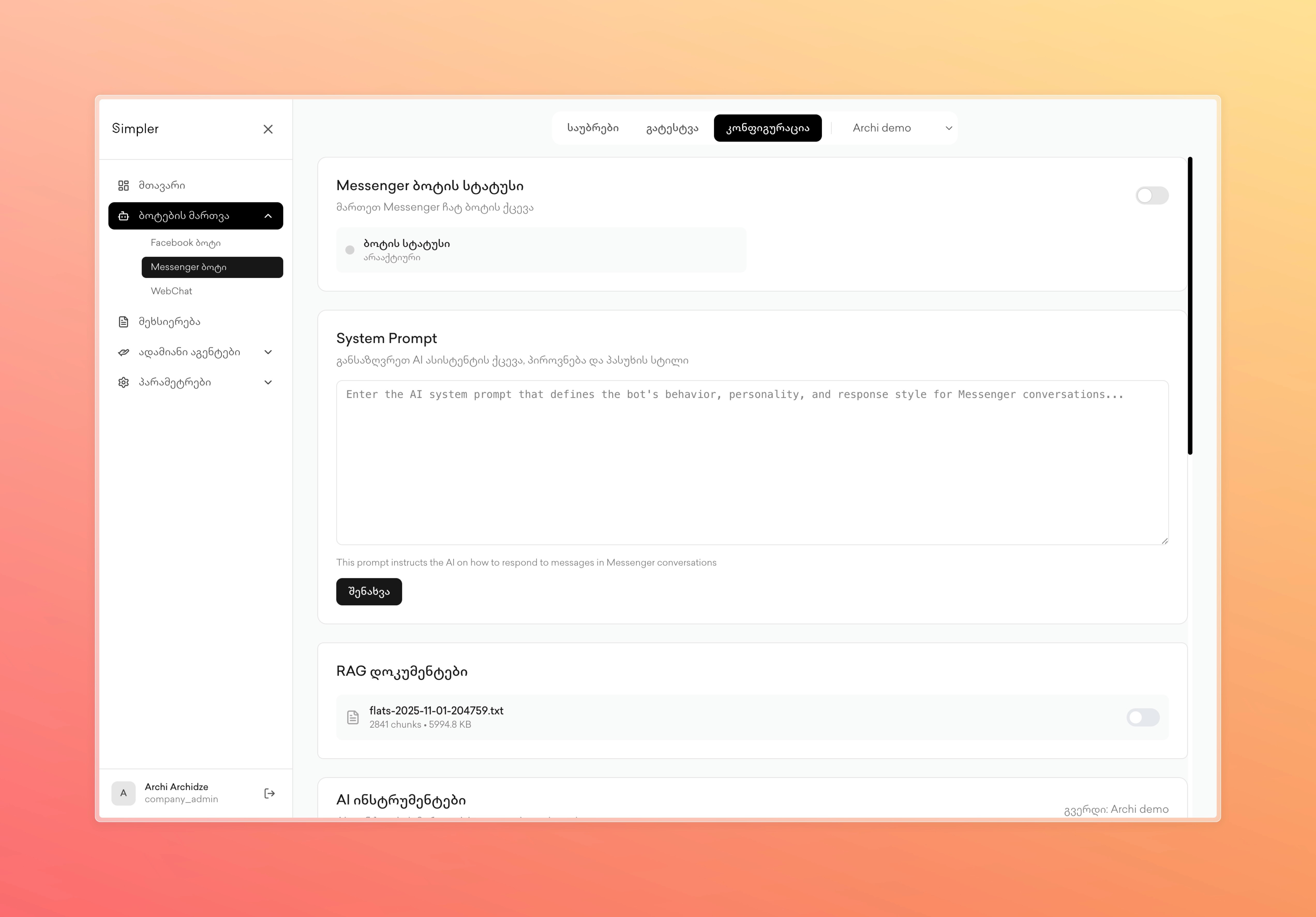
The configuration tab is similar to that of Facebook. The AI bot switch controls whether the bot responds to Messenger conversations. The system prompt defines the bot's instructions for Messenger interactions. RAG documents Memory appears from the Memory page with switches to enable or disable specific knowledge for Messenger. CRM integrations are shown with individual switches for accessing Messenger. The tools usage section displays all available capabilities with activation controls, specifically for Messenger.
The testing tab provides a sandbox environment where you can create simulated conversations and test the bot's responses. Tests use the system prompt and tools configured for your Messenger bot.
Additional Information
If your company manages multiple Messenger accounts, the dropdown selector at the top of the page allows you to switch between different accounts to manage each one separately.
Contact us on Whatsapp at +995 599 100 987
or via email: info@simpler.ge