Control panel
Facebook page
When you open the control panel and switch to bot management, select Facebook from the channels.
The interface displays the "Conversations" tab, where your Facebook posts will appear along with their images and post text.
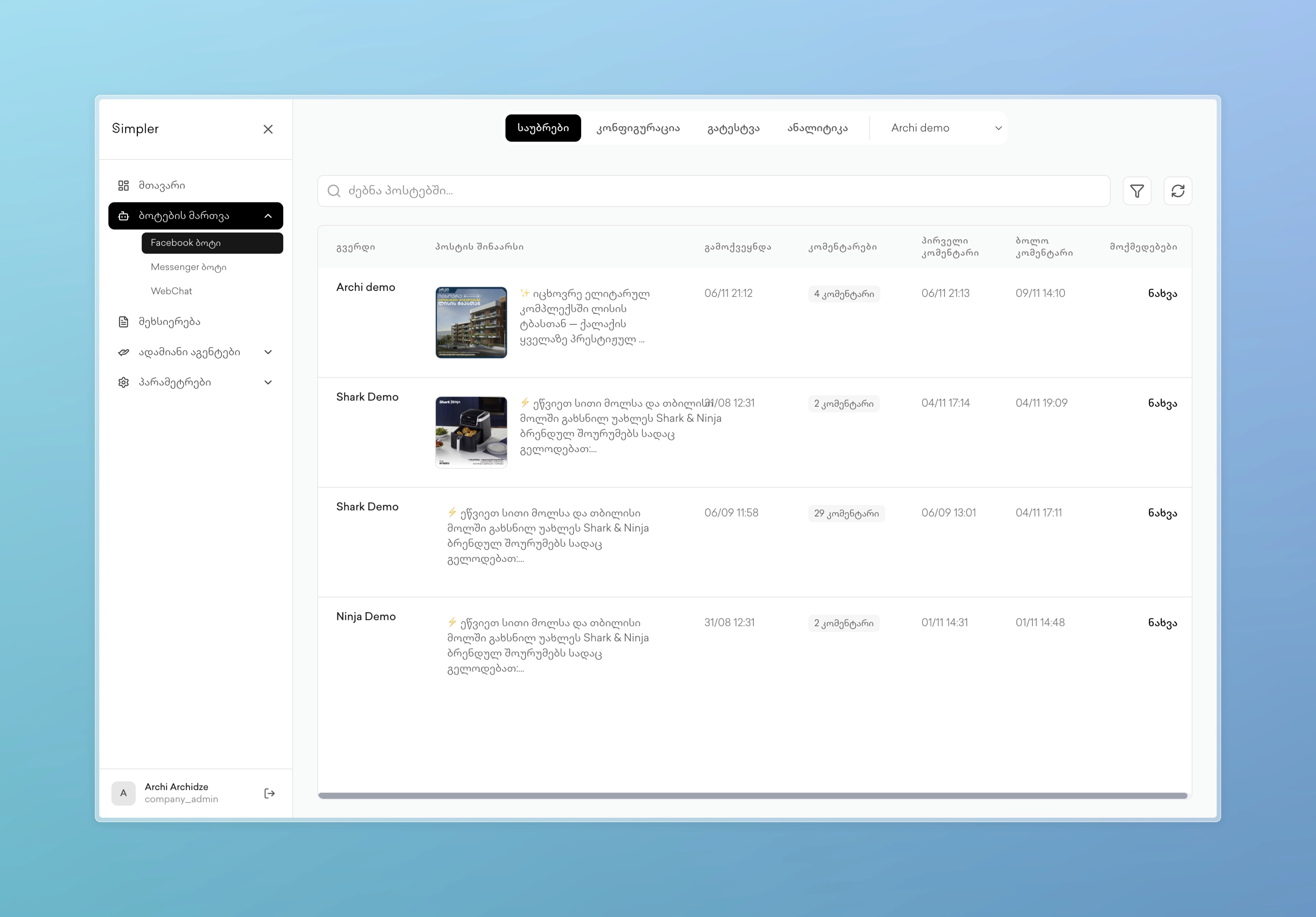
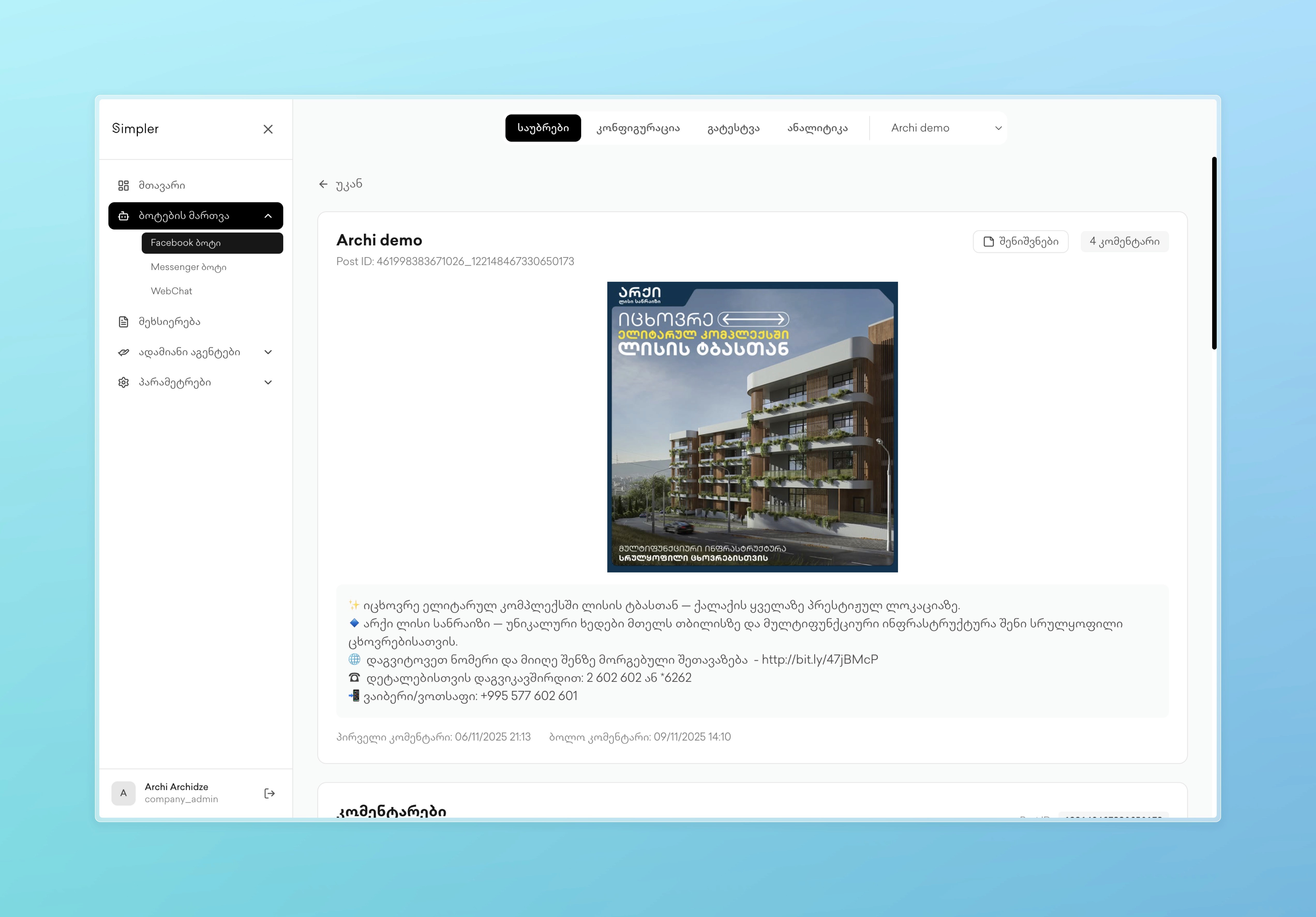
By clicking "View" on any post, you open a full view that shows all the content, all user comments, and bot responses.
Configuration
Go to the configuration tab to manage the settings of your Facebook bot. The toggle for the AI bot at the top turns the bot on or off for Facebook. Below that, you will see the System Prompt, which defines the instructions for the bot.
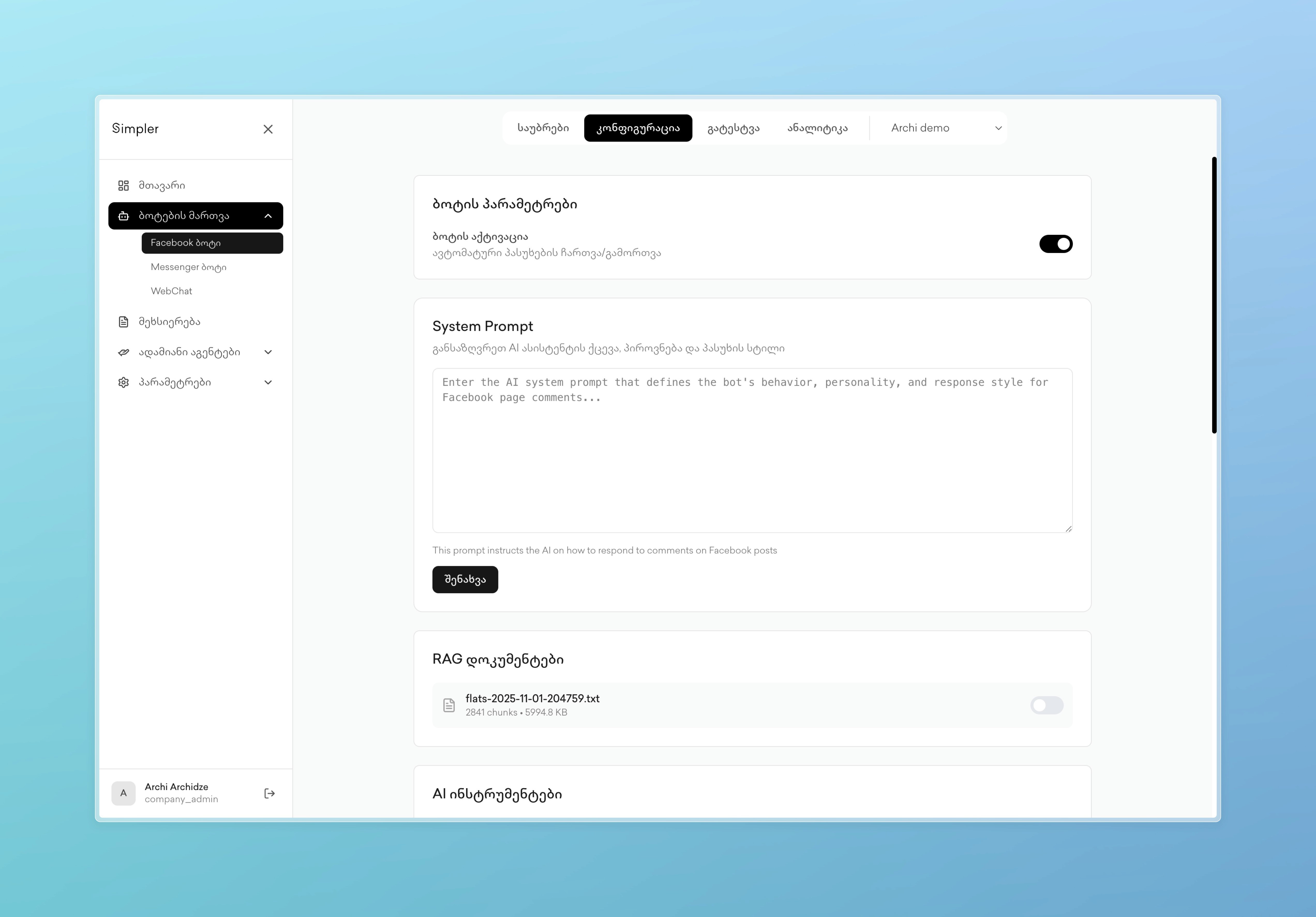
The RAG documents section shows all the files in the knowledge base that you uploaded through the memory page. Each document has its own toggle, allowing you to select what information the Facebook bot will have access to. This means you can enable specific documents for Facebook while leaving others off, giving you control over channel-specific knowledge.
The CRM integrations section works similarly. All CRM systems connected to Simpler by your company will appear with individual toggles, so you can decide which integrations the Facebook bot should use.
The AI instructions section lists all tools available to your bot, such as: searching the knowledge base, switching to a human agent, retrieving product images, moderating comments, and so on. Each tool can be turned on or off specifically for Facebook.
Testing
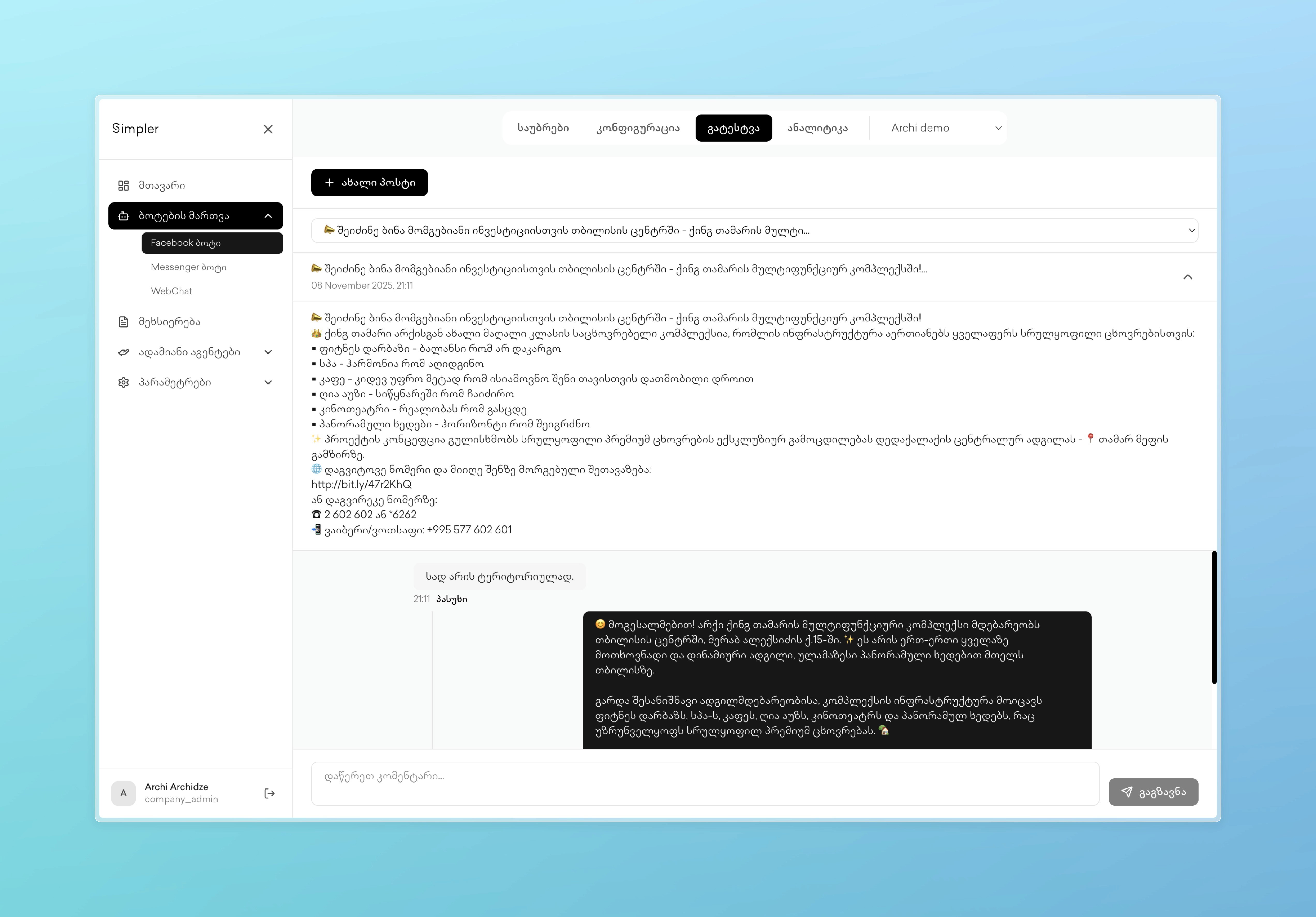
The testing tab allows you to simulate Facebook posts and comments. Type the post text, add test comments, and see how your bot reacts using the current configuration settings. This helps you confirm that everything works correctly according to your selected system prompt, enabled documents, integrations, and tools before users start interacting with the real Facebook page.
Contact us on Whatsapp at +995 599 100 987
or via email: info@simpler.ge